

Tracking hours when nobody is paid
Switch Staff pay off and the pay report becomes an Hours report. Where it lives, what counts as an hour, and how to get it out as a spreadsheet.
If the people you schedule are volunteers, or are paid somewhere other than Logidex, you can switch pay off entirely and still keep a record of hours.
Switch pay off
Customize → Money → Staff pay. Turn it off.

Every pay field, total and money column disappears from the product. Nothing already recorded is deleted, so switching it back on later brings it all back.
⭐ The report does not vanish with it. It becomes the Hours report instead, at the same place, counting the same shifts.
Where to find it
Roster → Hours report, the button along the top of your roster list. On a phone it is inside the ••• menu beside the roster heading.

What you get
Four columns, one row per person:
- Name
- Shifts worked — how many shifts they have already done
- Hours worked — the total of those shifts
- Upcoming hours — work that is scheduled but has not happened yet
At the top, the same figures as one sentence: how many hours, by how many people, over the period you are looking at.
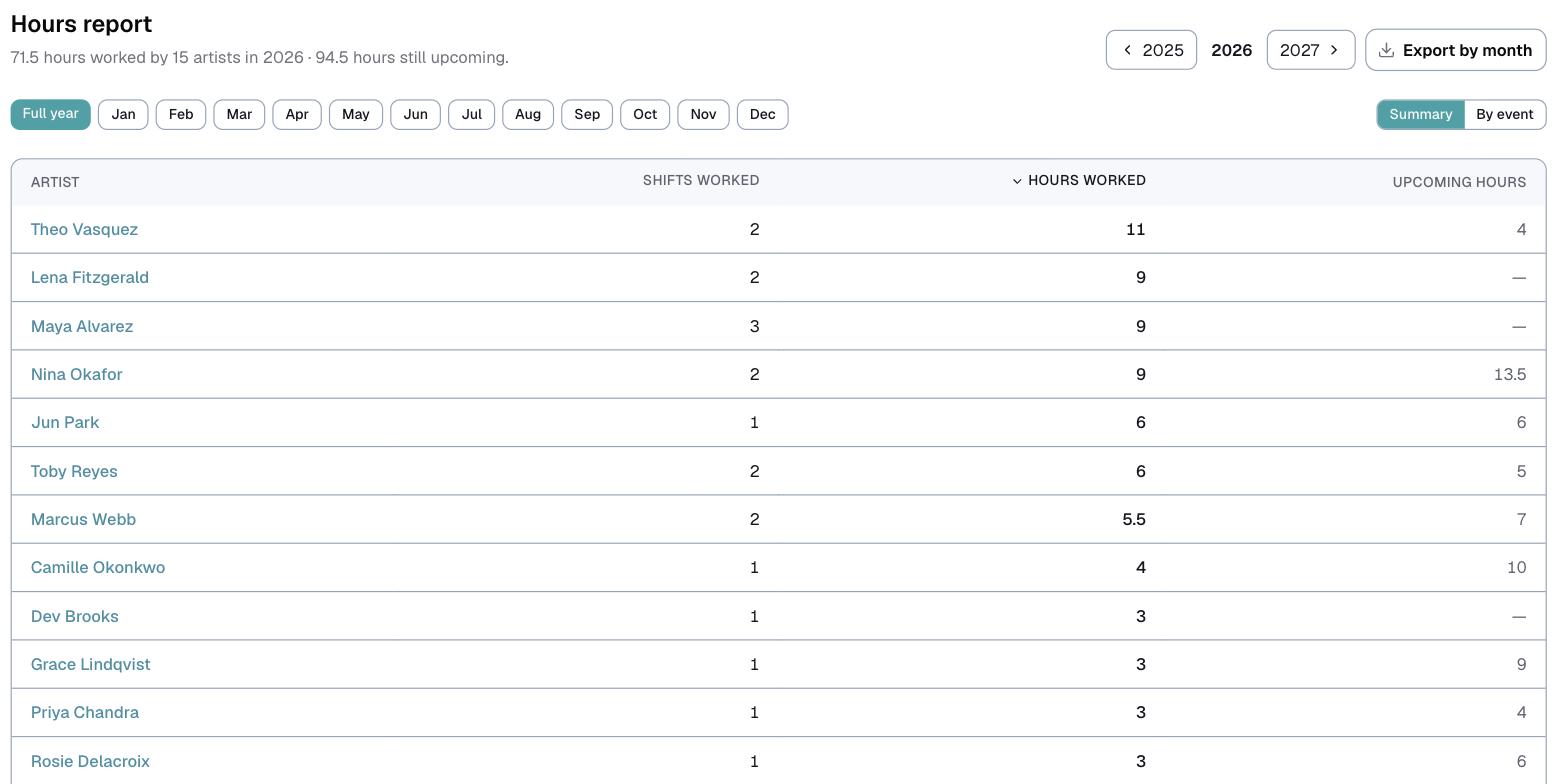
Click any column heading to sort by it. Click it again to flip the order.
What counts as an hour
This is the part worth reading properly, because it decides what your numbers mean.
- Hours come from each shift's scheduled start and end time. Nobody clocks in or out. If a shift is written as 1 to 4 PM, that is three hours, whether they left at 3:45 or stayed until 5.
- Only booked and completed bookings count. An inquiry never happened, so it never counts.
- Canceled bookings and canceled shifts never count, even if the cancellation came late.
- A shift running past midnight counts in full. An 8 PM to 2 AM shift is six hours, not a negative number.
- Hours worked means shifts whose date has already passed. Anything still ahead sits in Upcoming hours instead, so the two never get mixed.
The two views
Along the top there is Summary and By event.
- Summary gives one line per person.
- By event gives one line per shift, so you can see exactly which jobs made up somebody's total.
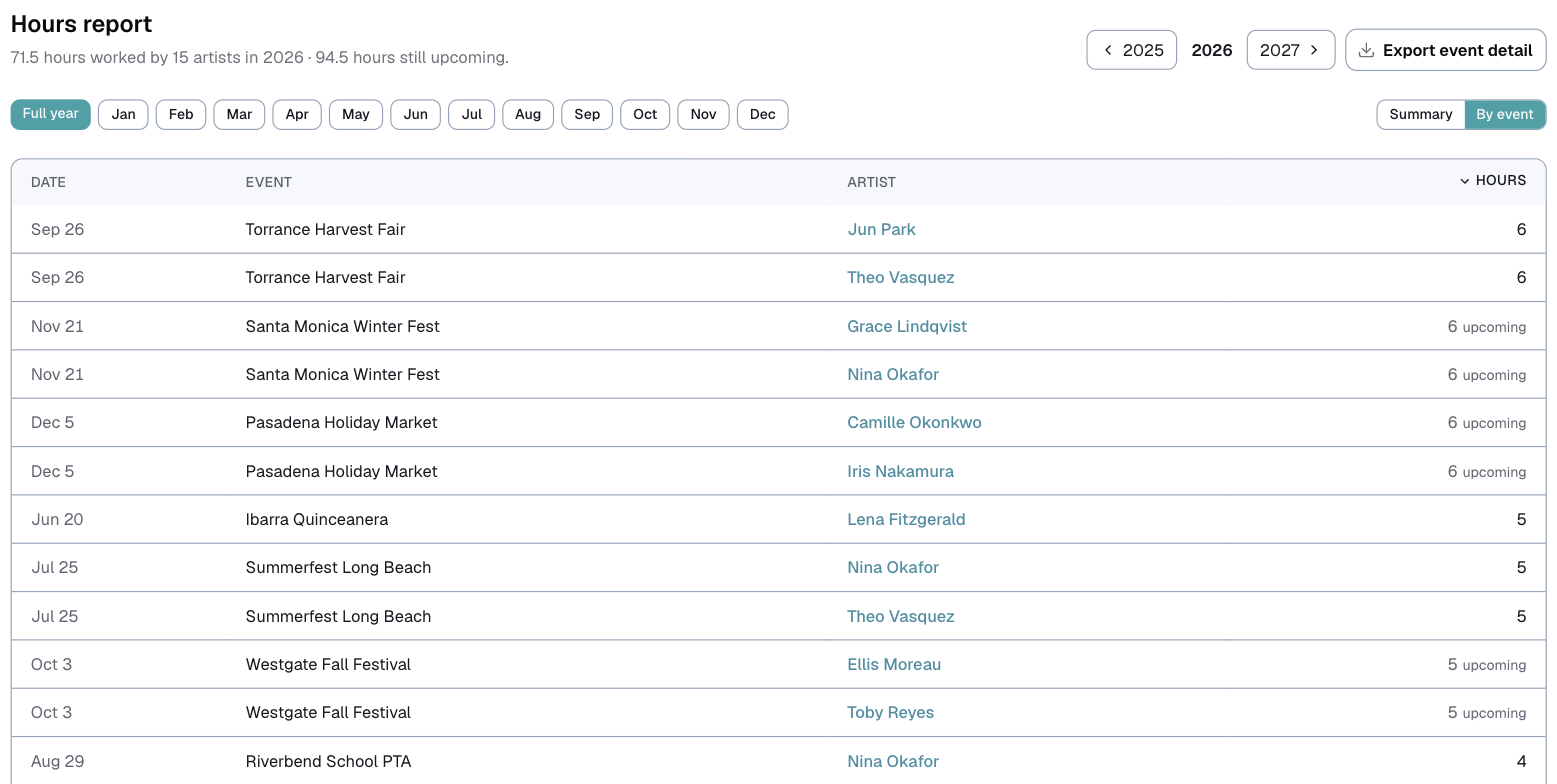
There is also a month selector, and a Full year option.
Getting it out as a spreadsheet
The Export button downloads what you are looking at. It follows both the month you have picked and the view you are in, so if you want the by-shift detail for March, set those two first and then export.
Hours on the Analytics page
Analytics has a chart called your team by hours worked, ranking everyone with a bar each.
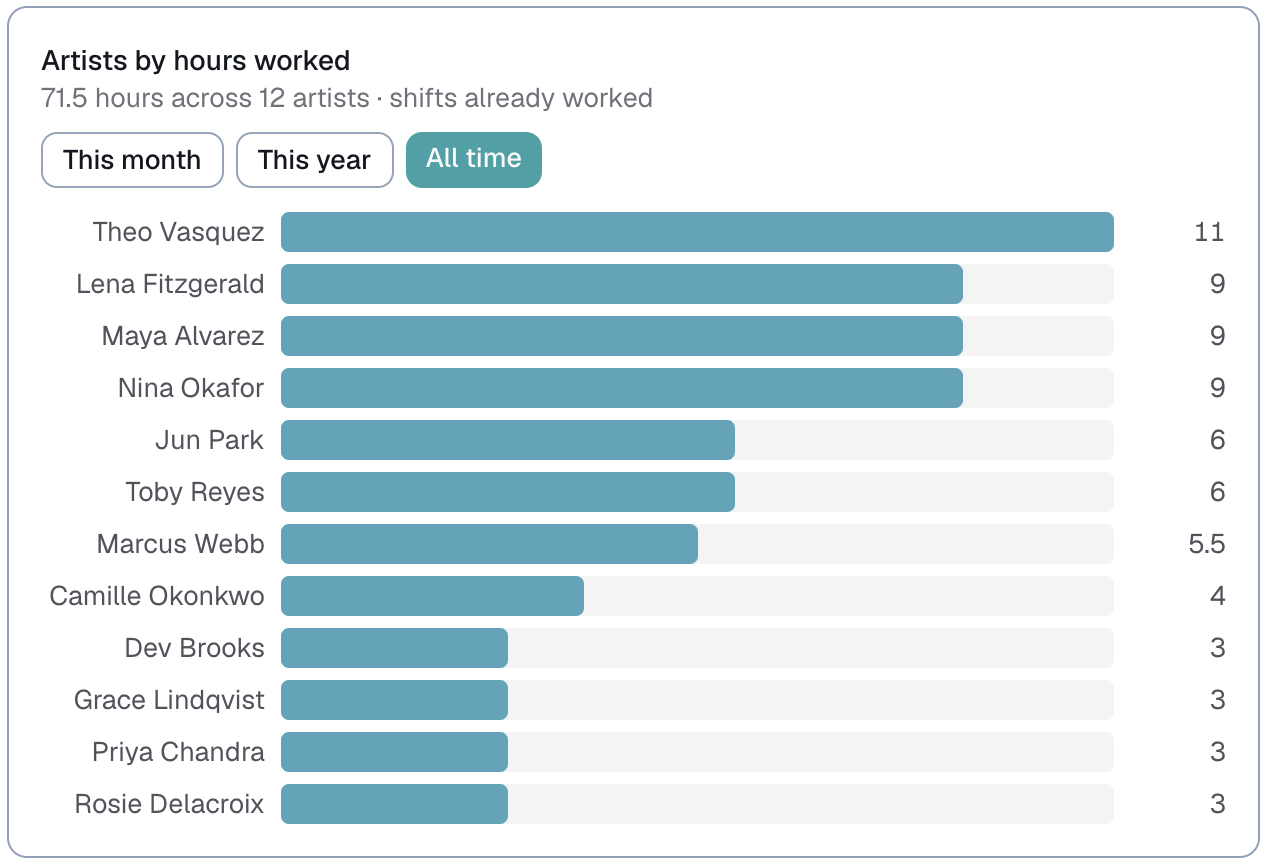
Three range buttons sit above it: This month, This year and All time. It counts shifts the same way the report does, so the two can never disagree.
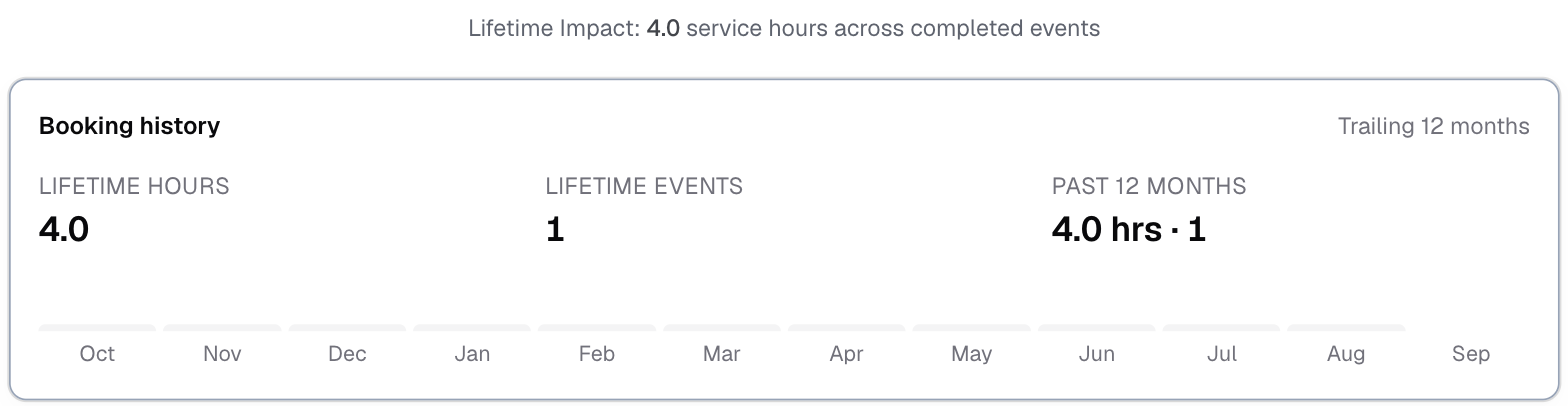
An individual's total is also on their own card, as Lifetime hours, with a month-by-month breakdown beside it.
Last updated