

The Event Card and your Google Calendar
The card is where a job's details live. The calendar template decides which of them get printed on the invite your staff see. Filling in a field does not put it on the invite by itself.
Once your Event Card is set up, there is a third screen that looks like the same list of fields again: Settings → Google Calendar. It is not, and the difference explains the one thing that surprises everybody.
Filling in a field on a booking does not put it on the calendar invite. You choose, once, which fields get printed.
What each screen is for
Customize → Event Card decides what you can record about a job.
Settings → Google Calendar decides what gets printed on the invite your staff receive. It is a template — a list of lines, in the order they appear inside the calendar entry.
You can see which is which
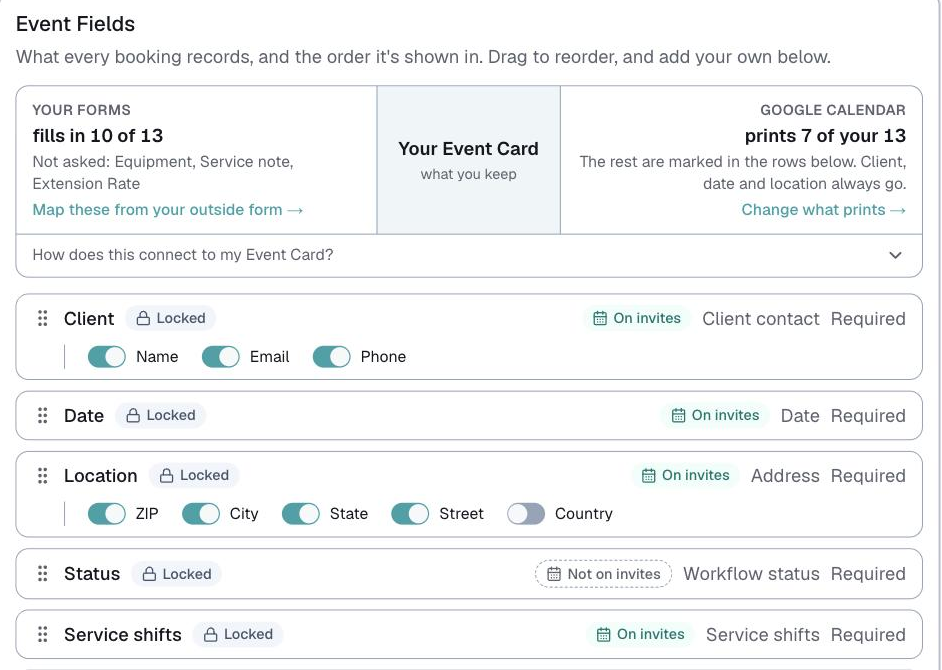
On Customize → Event Card, every field carries a small calendar mark:
- On invites — this field prints
- Not on invites — it doesn't
There's a count above the list too, and the names of the ones that aren't printing. Click any mark to jump to that line in your template.
Why a field might not print
Each line in the template has a source — where its text comes from. Two matter here.
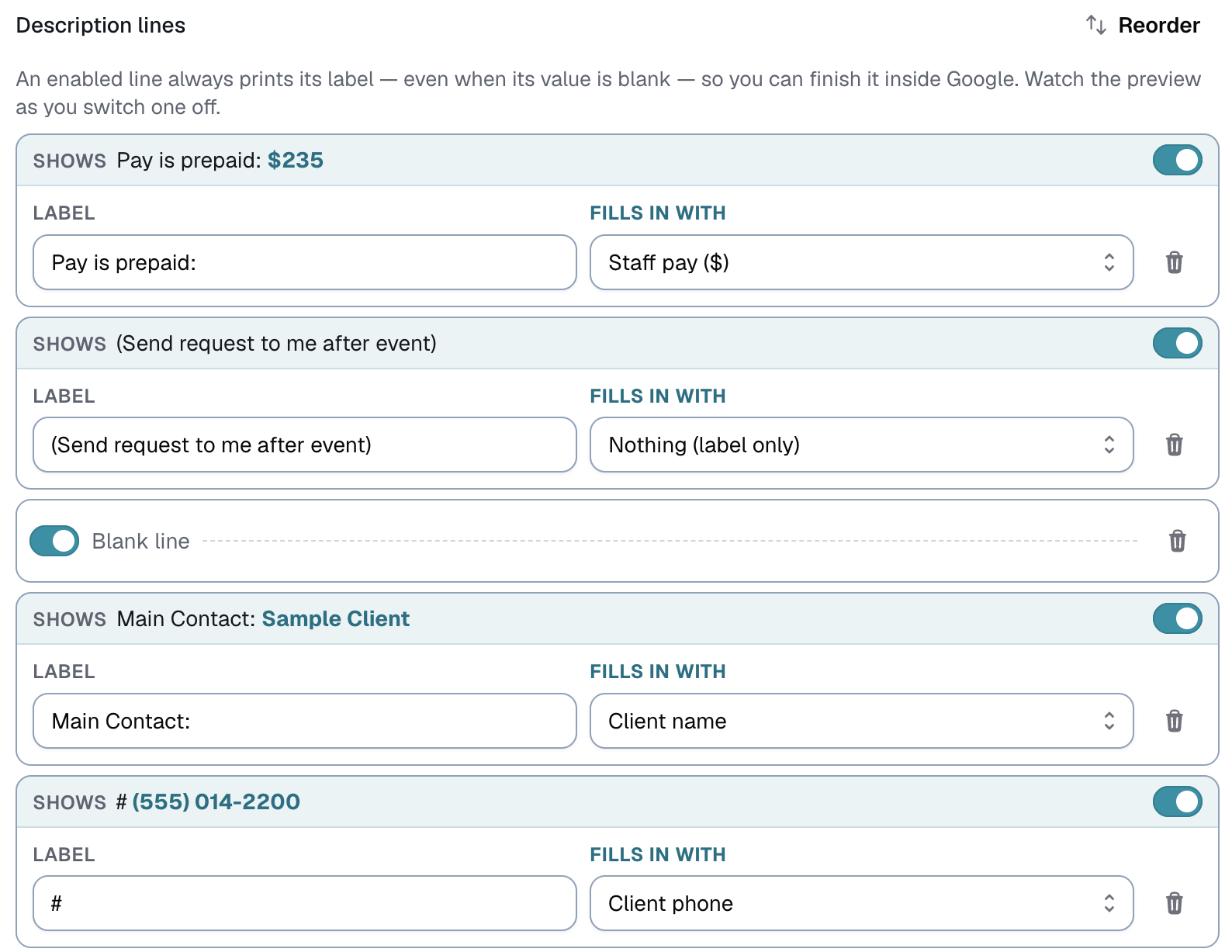
Nothing (label only) prints the heading and nothing underneath, whatever you typed on the booking. The line exists so you can type the details straight into Google yourself.
Event card: [your field] prints the heading and the field's value.
⚠️ Several lines ship set to "Nothing (label only)". So you can fill in Parking, press Push all, and the invite says "Parking:" with nothing after it.
If that has happened, the Event Card screen offers a Map to invites button that fixes it in one click — it points the existing line at the field, without changing anything else about your template.
What happens to text you typed into Google
This is the trade, worth understanding before switching a line over.
While a line is "Nothing (label only)", anything you type into Google is kept. Update never wipes it. That is the point of that setting.
Once a line is pointed at a field, Logidex owns that line on any booking where the field has a value, and Update replaces what you typed in Google with what is on the card.
Where the field is still empty, the line prints as a bare heading and your typing survives. Nothing is retroactive either — a booking only changes when you push it.
On the booking itself
Open any booking and the fields under Additional details that reach an invite carry the same small calendar mark. At the bottom of that section is "Adjust what is sent to Google Calendar", so you can change it from where you noticed it.
If you have not read it yet, the Event Card and the Booking Form covers the two steps before this one, and the order to build them in.
For how pushing behaves — why pressing the button twice is safe, and when your team gets emailed — see sending shifts to Google Calendar.
Last updated