

The event card: everything about one booking
Where a booking lives from inquiry to done — its shifts, its details, its notes and what it earned.
Click any booking and you land on its card. Everything about that job lives here, and nothing about it lives anywhere else.
The top of the card
The client's name is the title of the booking, with their email and phone underneath. Click any of them to edit in place.

Two fields sit on the right, and they do different jobs.
Status is where the booking is up to: Inquiry, Pending Match, Confirmed Match, Booked, Completed or Cancelled. Inquiries are requests you have not committed to. Booked means it is happening, and Completed means it is done. A canceled booking keeps its amounts, so a cancellation fee still counts on the pay report and the client's file. See "Canceling a booking". You can rename any of these in Customize > Workflow.
Follow-up is your own reminder about the paperwork: No follow-up, Invoice/Contract sent, Needs contract, or Awaiting deposit. It changes nothing about the booking, it just keeps the answer in front of you.
Check-in, Payment and History
Under the client's email and phone, booked jobs show two more dropdowns: Check-in, for where your conversation with the client is up to, and Payment, for whether they have paid. History beside them opens a timeline of everything that has happened to the booking: every status and follow-up change, every Check-in and Payment step, and when the booking first arrived.

The Client check-in button in the top bar opens the check-in email for this booking, ready to copy. See "Check-in and Payment steps, and a booking's History" and "Sending client check-ins".
When and where
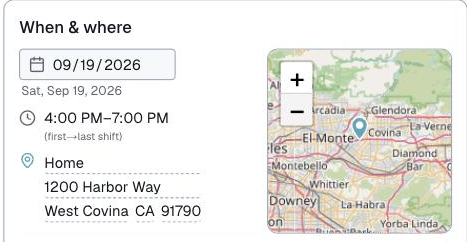
The date, the venue and the address, with a map right underneath. Type an address and the map finds it, so you can see the neighborhood without leaving the booking.
The time you see here is worked out for you: it runs from the start of the first shift to the end of the last one. A booking has no start and end of its own. If a face painter works 2 until 4 and a balloon twister works 3 until 5, the card reads 2 until 5. Change a shift time and this line changes with it.
Notes, and your own fields
Notes is a free space for anything about this one booking.
Underneath it is Additional details, and this is the part worth setting up properly. Every field here is one you created in Customize > Event Card, so the card asks you for exactly what your business needs to know, and asks it the same way every time.
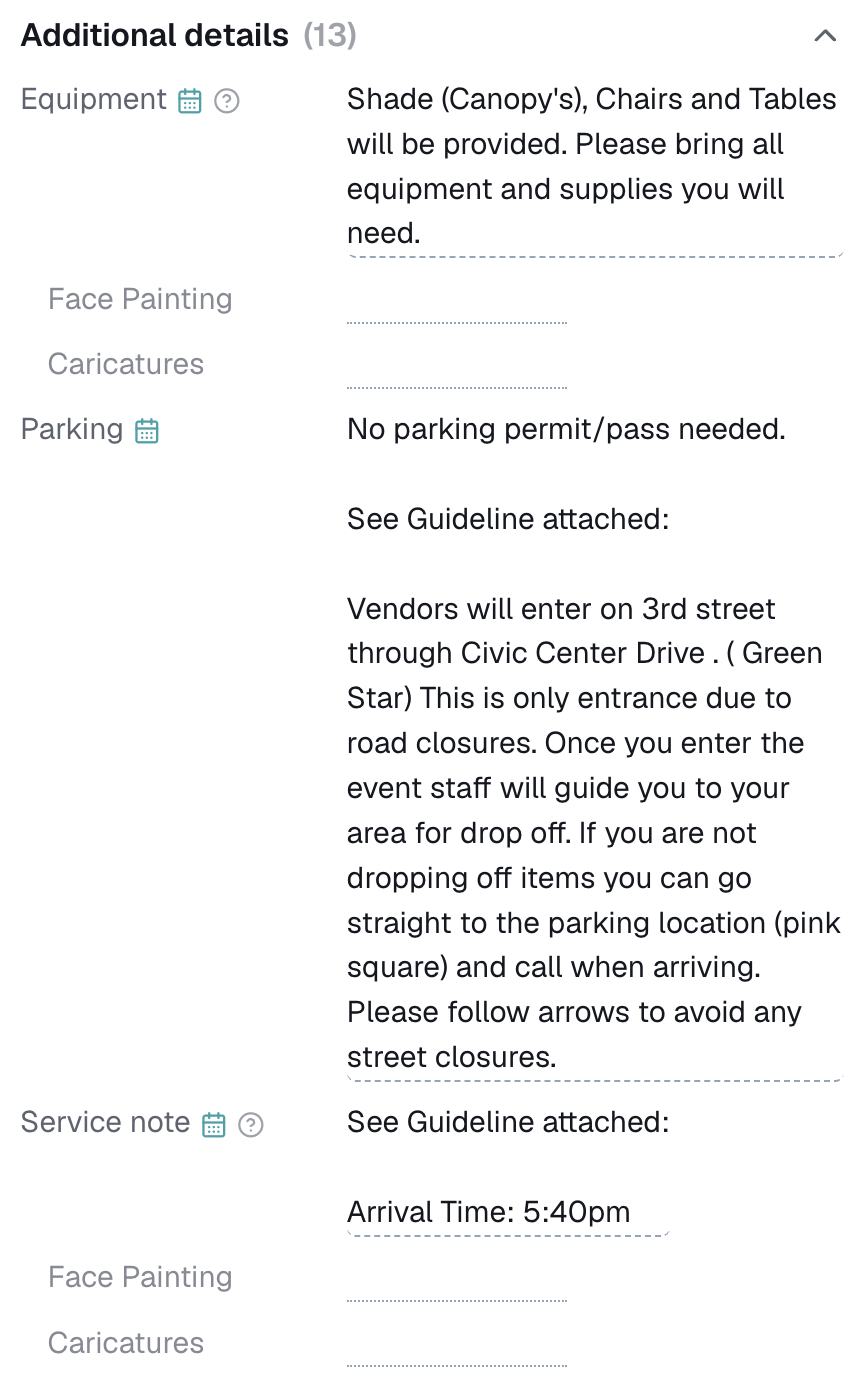
A dotted line means empty. Click it, type, and it saves on its own.
Some answers are the same for the whole booking, like parking. Others change by service, like what each artist needs to bring. A field switched on for Can differ by service in Customize > Event Card gets a line for the booking and a line for each service on it.

What reaches your artists
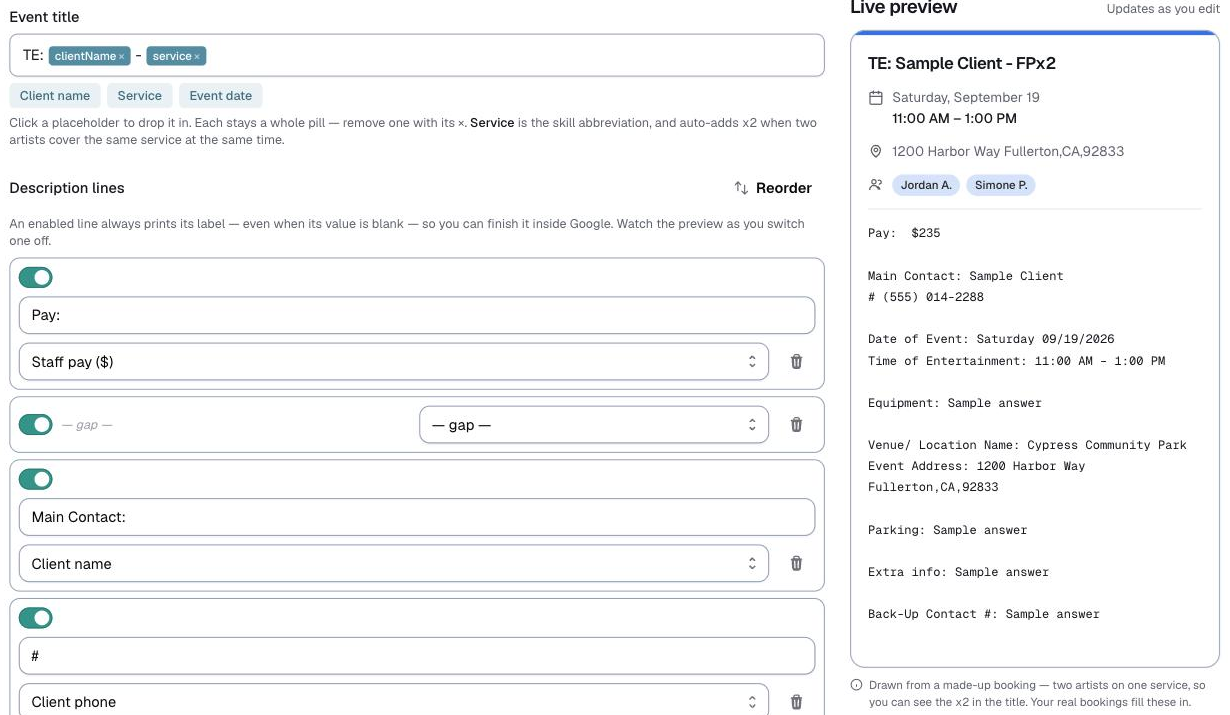
Under those fields is Adjust what is sent to Google Calendar. It takes you to your Google Calendar settings, where you build the invite once: what the title says, and which of your details print in the description. A live preview beside it shows exactly what your artists will open.
Set it up there and every booking sends the parking note and the setup note on its own, without you retyping anything.
Service shifts
A booking is made of shifts, and each shift is one service for one stretch of time. The shift holds who is assigned, when they work, and what they are paid.
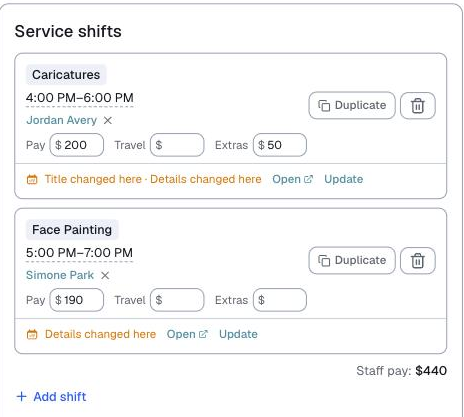
On each shift row:
- Pay, Travel and Extras are what this artist earns. The staff pay total under the panel adds them up.
- Duplicate copies that service and time as a second, unassigned slot. Use it when you need two face painters instead of one. It is not the same as Duplicate in the More menu, which copies the whole booking.
- Delete removes the shift. It appears on shifts you can still take off the booking.
- The calendar line tells you where that shift stands with Google: nothing yet, or what has changed since you last sent it, with Open to see the invite and Update to send the change.
- Add shift at the bottom adds another service to this booking.
Putting your team on one invite
When two or more shifts run at the exact same time, Merge into one calendar event? appears above them. Tick the ones that belong together and they share a single invite, so your artists see one event in their calendar instead of three.
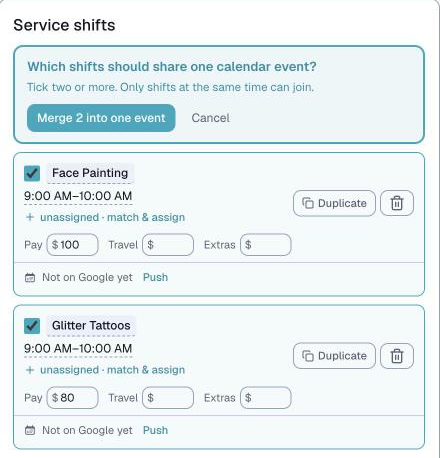
A merged shift shows a Merged pill and an Unmerge link. Pay is not printed on a merged invite, since more than one person is reading it.
Sending it all to Google
The heading counts what is waiting, so "2 to update" means two invites have changed since you last sent them.
Push all to Google sends every shift on the booking in one go, and the three lines under the button are a promise about what it does: it updates the invites you already have, creates only the ones that are not there yet, and never makes a second copy of one you already have.
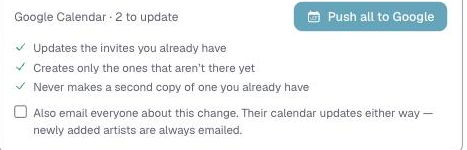
Tick Also email everyone about this change when you want your team told. Their calendars update either way, and anyone newly added is always emailed.
The money side
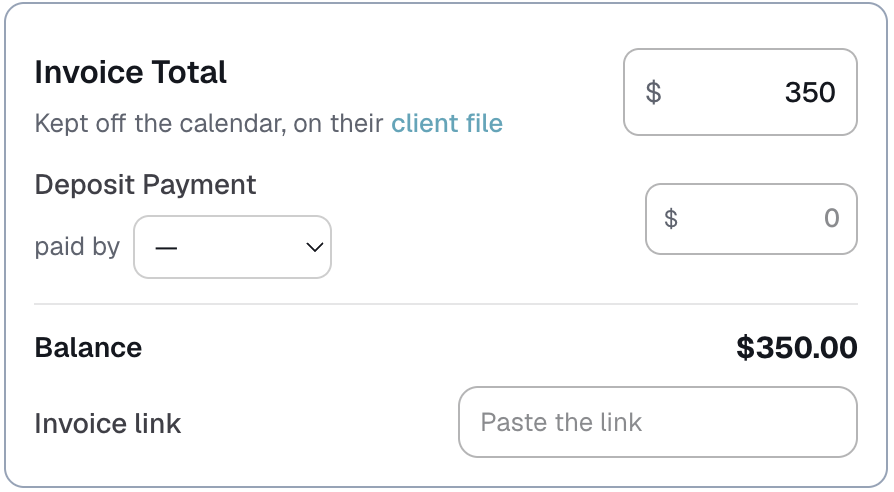
The amount the client is paying you sits here. You can rename that field in Customize > Money, so yours may read Invoice Total or something else entirely. It stays off the calendar and sits on their client file.
If you take a deposit, type it under the total and pick how it was paid. The Balance works itself out underneath. There is also a field for the Invoice link you send the client. See "Deposit, balance and the invoice link".
Staff pay adds up from the shifts, and the difference between the total and staff pay is your margin on this job.
Who has answered you
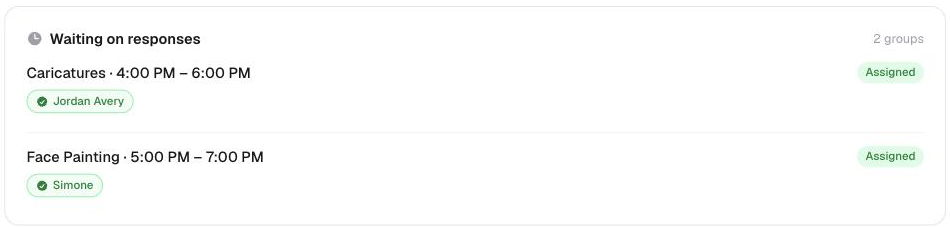
Waiting on responses keeps score of every artist you have contacted for this booking, grouped by shift, with how many said yes and how many have not replied yet.
Finding someone: the map beside the list
When you go looking for who can take a shift, the card switches into matching. The list ranks people, and underneath it, Where they are puts the same people on a map, so what you are reading and what you are looking at are the same shortlist.
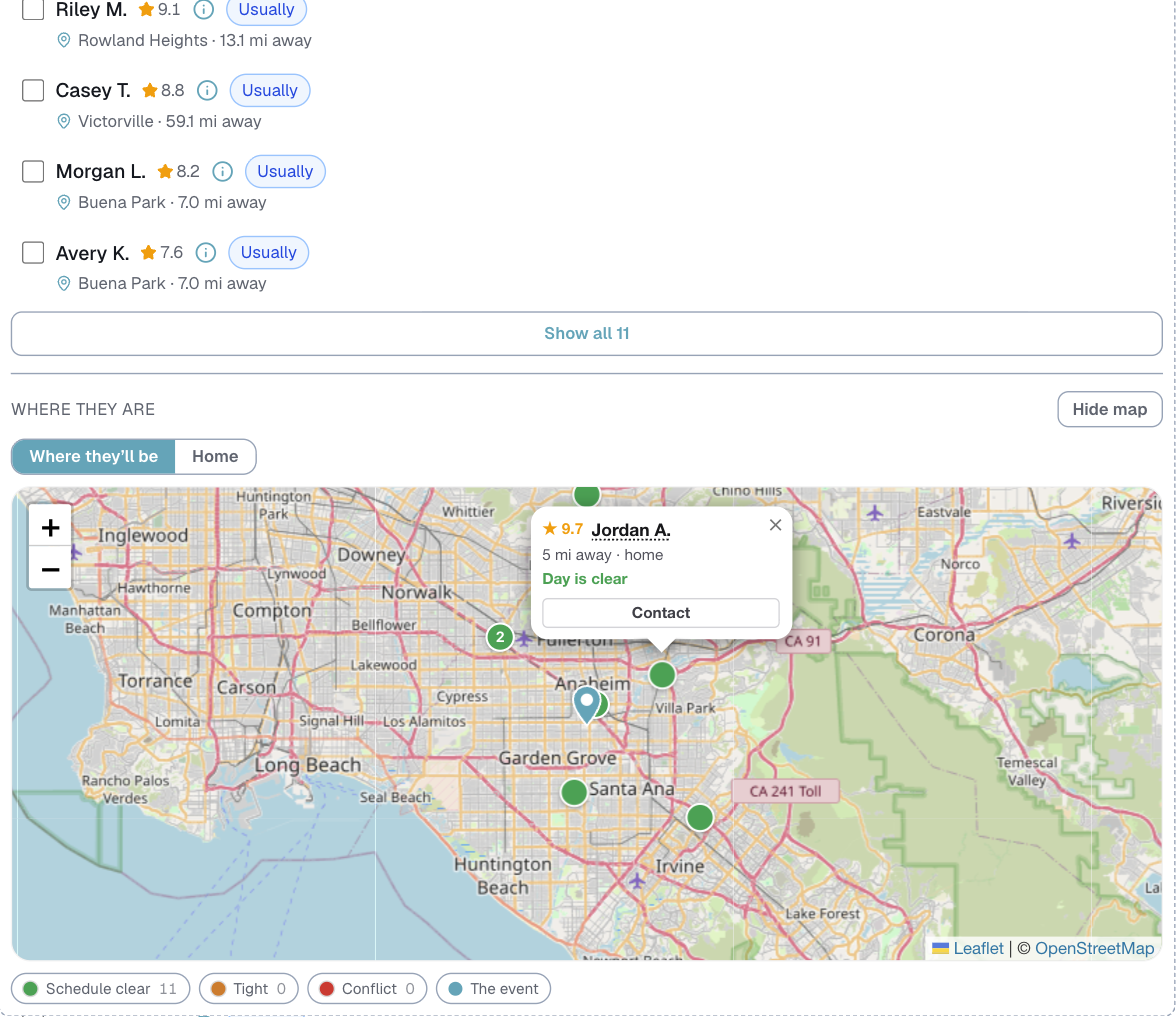
The toggle above the map is the part worth knowing. Home plots where people live. Where they'll be plots where they will actually be that day, because somebody with an earlier booking is on the road, and their last known location is the honest answer to "who is near this job?"
Tap a dot and you get that person: their rating, their fee, how far they are from home, the drive to this job, and how much room there is between their other work and yours, down to the minute. Contact is right there.
The colors underneath are the same reading the list gives you: schedule clear, tight, or a conflict, with a square for anyone who is at another job at that time, and your event marked separately.
⭐ This is the difference between asking the nearest person on paper and asking the person who can actually get to you.
The More menu
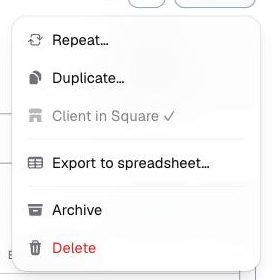
- Repeat sets up a booking that happens again on a schedule.
- Duplicate copies this whole booking to a new date, unassigned, so you can re-staff it.
- Export to spreadsheet gives you the booking as one row, with a preview first so you can drop any columns you do not want.
- Client in Square shows whether this client has been pushed to Square, with a tick once they are there.
- Archive takes it out of your lists without deleting anything.
- Delete removes it for good.
Last updated