

Adding your own fields to people's profiles
Keep an emergency contact, an insurance date or anything else on every profile. Your staff fill these in themselves.
Every business needs to keep something the standard profile does not have. Add it as a field and it appears on every profile.
Adding a field
- Go to Customize → Roster Profile.
- Under Add Custom Field, type a label, such as Emergency contact.
- Pick the type: Text, Long text, Email, Phone, Website / link, Address, Checkbox or Dropdown. A dropdown asks for its choices.
- Press Add. It saves straight away, with no need to press Save.
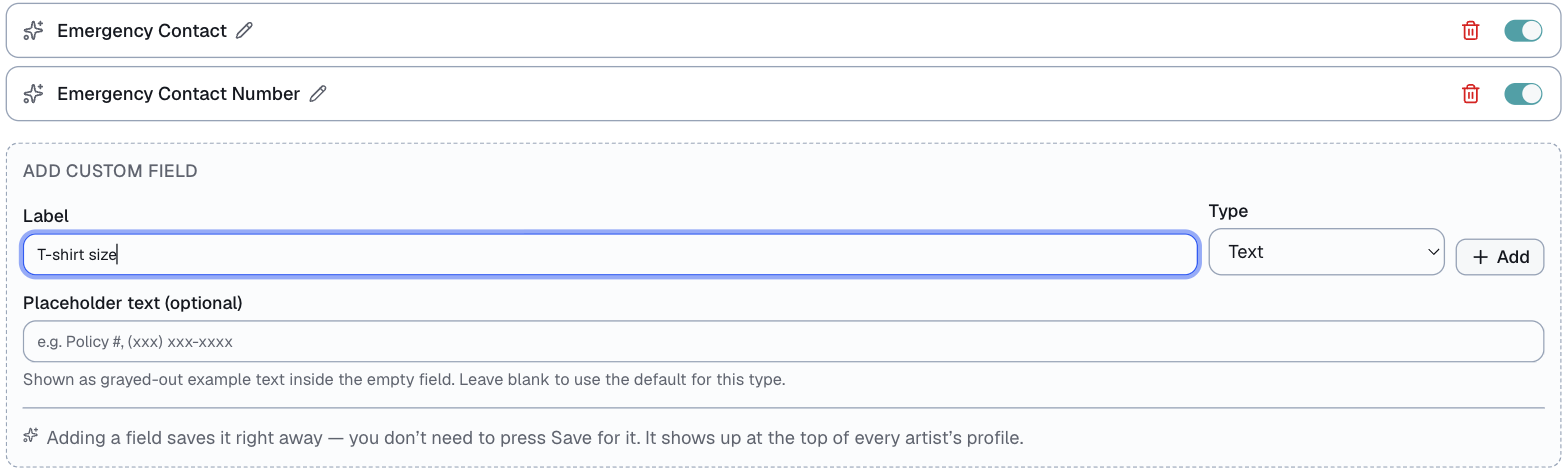
Click a field's name to rename it. The switch beside it hides it everywhere without losing what anyone has filled in.
Where it shows up
- On each profile, for you and anyone else on your team to fill in or read.
- In each person's portal, under More about you, where they fill it in themselves.
⭐ That second part is the useful one. Send a message asking everyone to add their emergency contact, and it is done without you typing a single one.
⚠️ Everything in these fields is visible to the person it belongs to, and they can edit it. For notes only you should see, use the admin notes on their profile instead.
Approving changes to contact details
In the same section, Approve profile edits makes changes to someone's name, email, phone and address wait for you. Your own fields are not included, so they always save straight away.
Last updated