

Step 2 — Connecting the tools you already use
Your outside form, Google Calendar and invoicing. Start this early, because it is the step that will get your information to where it needs to be.
Only the ones you actually have. Skip the rest.
Start this early. It is step 2 of four rather than last, because it is the only step with somebody else in the loop — a web developer, a login to your website builder, a support thread with a form company. Begin it now and let it run in the background while you get on with the rest.
Your outside form
If you already take bookings through a form somewhere else, like your website or Wix, that is your outside form. You can keep it, and nothing needs rebuilding.
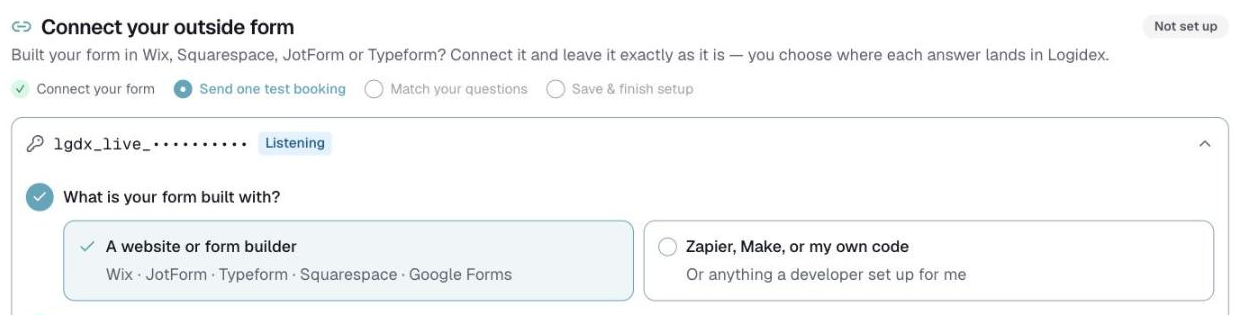
Go to Settings → Booking intake. It asks what your form is built with and then gives you the right instructions for that answer — the two paths are genuinely different:
- Form builders — Wix, Squarespace, JotForm, Typeform. Your key goes on the end of the web address.
- Automation tools and code — Zapier, Make, or something a developer wrote. The key goes in a header.
Your first real booking arrives held, so you can check every answer landed in the right field before anything goes live. Nothing reaches your dashboard until you say so.
There is nothing for an outside form to map onto until your Event Card exists, so do step 1 first.
Your Google Calendar
Connect it and shifts go out as calendar invites, so your staff see their work where they already look.
Go to Settings → Google Calendar and connect your account.
Google will show a longer approval screen than signing in does. It is asking for calendar access, which is a bigger ask than a sign-in, and Google treats it accordingly. The Google account you connect does not have to be the one you sign in with.
Your invoicing platform
Square is the one connected today. Linking it keeps your client list in step, so a client you invoice in Square is the same client in Logidex rather than a second copy.
You will find it under Settings → Square.
What you can skip
If you do not have one of these, skip it. None of them is required, and none of them blocks anything else. You can come back at any point.
Last updated