

Client records, and where they come from
Clients build themselves out of your bookings. Here is how they are matched, what the two booking counts mean, and how to merge duplicates.
You never create a client. They appear on their own, out of the bookings you already have.
How someone becomes a client
Every booking carries a name, an email and a phone number. Logidex groups bookings by those, strongest first: email, then phone, then name.
That ordering matters. Two bookings with the same email are certainly the same person even if the name is spelled differently. Two bookings with the same name might be two different Sarahs, so name is only used when there is nothing better.
The list
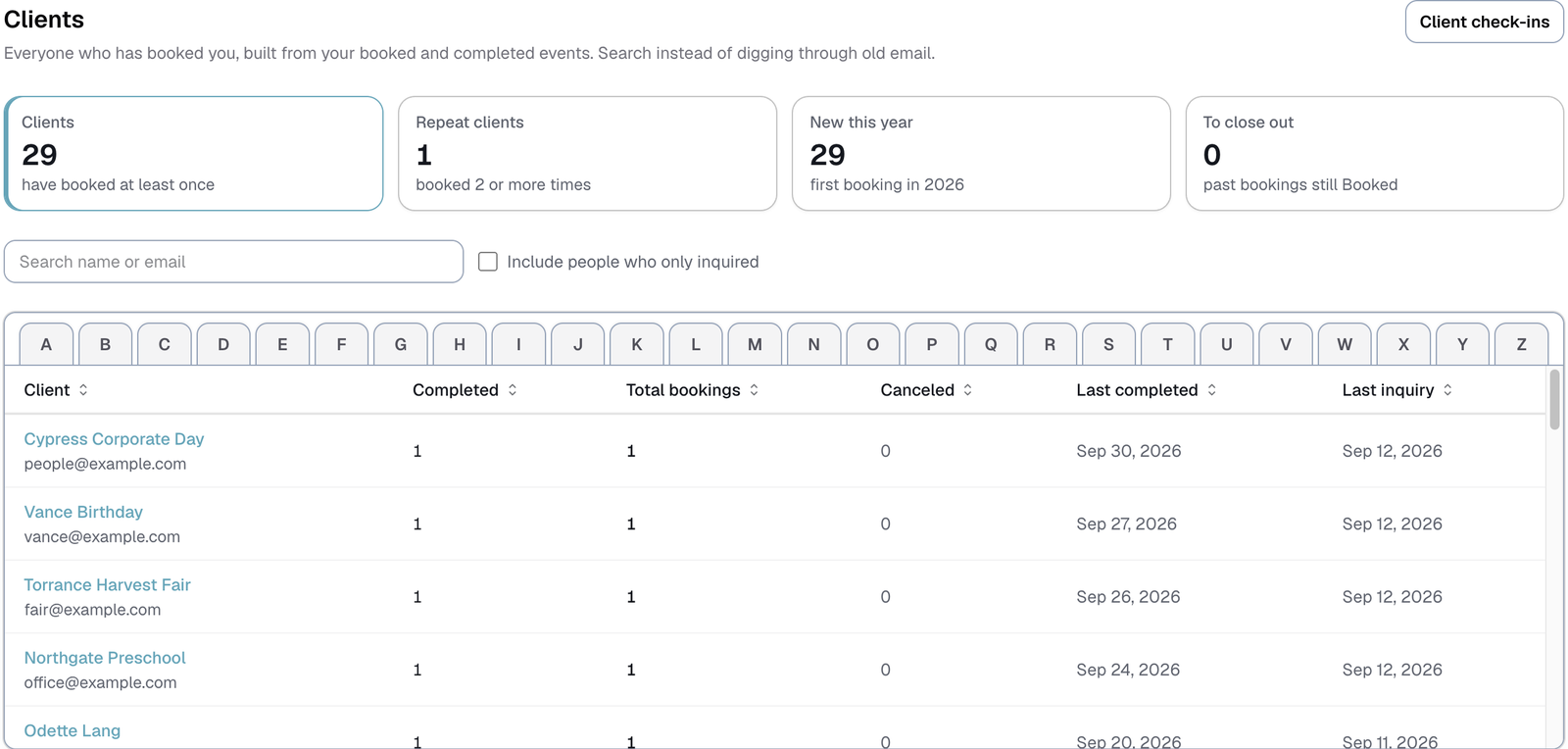
Four numbers sit across the top: Clients, Repeat clients, New this year and To close out. Each one is also a filter, so tap Repeat clients to see only the people who have booked you twice or more. Tap it again to see everyone.
Along the top of the list are tabs from A to Z, like the edge of a Rolodex. Tap a letter to sort the list by name and jump straight to it. A letter with nobody under it says so.
People who only ever inquired are left off. Tick Include people who only inquired to see them too.
The Client check-ins button at the top right opens your check-ins page, if you use them.
The counts
Every client shows Completed, Total bookings and Canceled, and they are usually different.
- Completed is jobs you have marked completed.
- Total bookings is completed plus still-booked. Canceled bookings and inquiries count toward neither.
- Canceled is how many of their bookings were canceled. A client whose only booking was canceled still stays on your list, because what they paid still counts.
Tap any column heading to sort by it.
If a client shows "3 to close out", that is three past events still sitting as Booked. Nothing is wrong. It is a nudge that their status has not caught up with real life, and those three are not counted anywhere as finished work until you change them.
What a client record holds
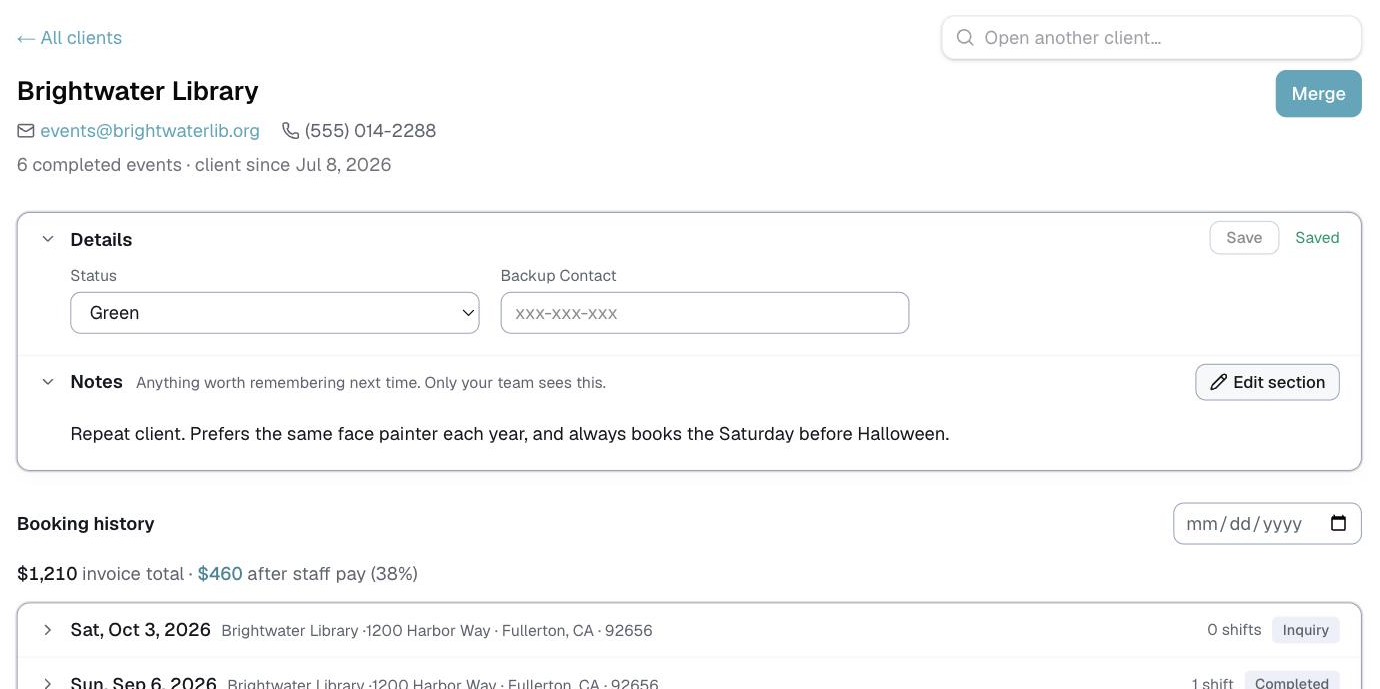
Open a client and you get their contact details, every booking they have ever had, and anywhere you have recorded what they paid.
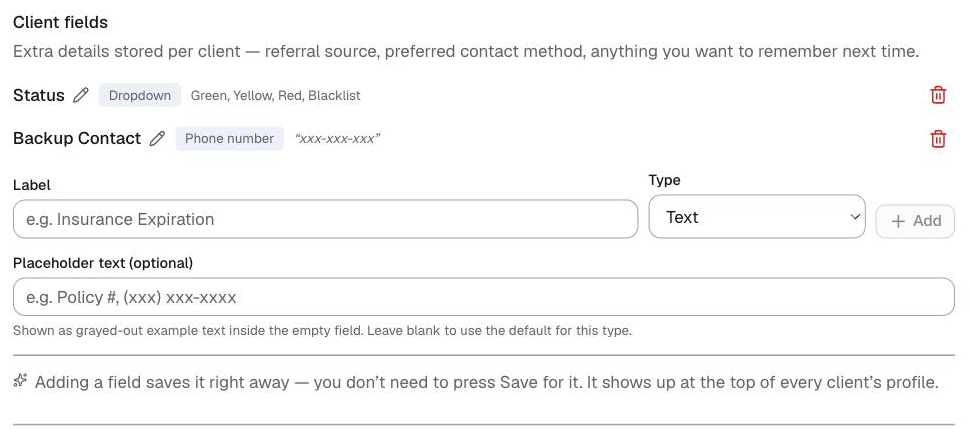
You can add Notes, and any fields you set up in Customize > Clients, so the things you would otherwise remember about a client live where anyone on your team can see them.
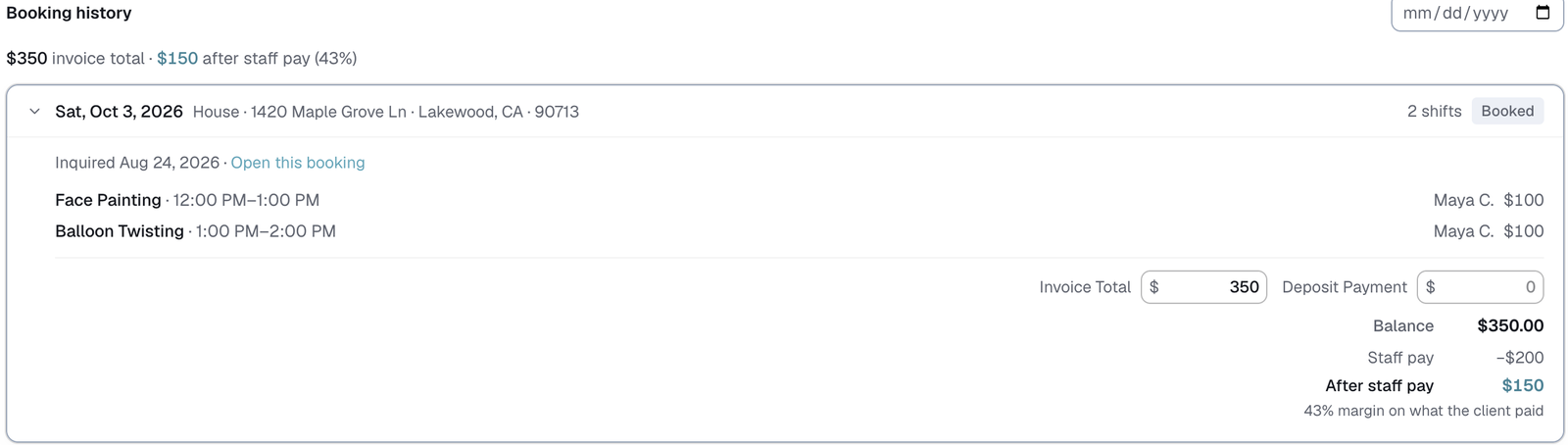
If you record what clients pay, those amounts sit here too and stay in step with the booking they belong to. Change the amount on the booking and the client record follows. If you take deposits, each booking shows its deposit and the balance still owed. See "Deposit, balance and the invoice link".
Rebooking
Because the record holds their whole history, it answers the question worth asking: who has not booked in a while?
Logidex can watch that for you. In Customize > Clients, Rebooking reminders puts a list on your dashboard of clients who are about due to hear from you.
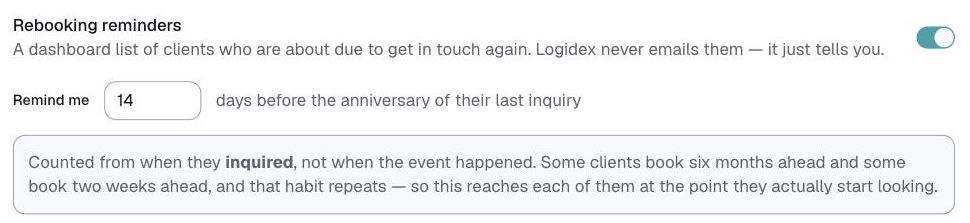
You choose how many days ahead to be reminded, and it counts from when they inquired, not when the event happened. Some clients book six months ahead and some book two weeks ahead, and that habit repeats, so this reaches each of them at the point they actually start looking.
⚠️ Logidex never emails your clients about this. It tells you, and you decide.
When one person has two records
It happens: they booked once with a personal email and once through work.
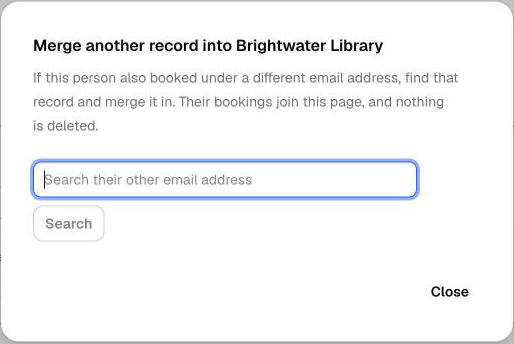
Open the record you want to keep, search for the other one by email, and merge. Merging keeps both sets of bookings and deletes nothing.
Merging starts from a client you are already looking at, and matches on email only. Logidex will not suggest merges by name, because millions of people are called Sarah and a wrong merge joins two real customers' histories together.
Exporting your list
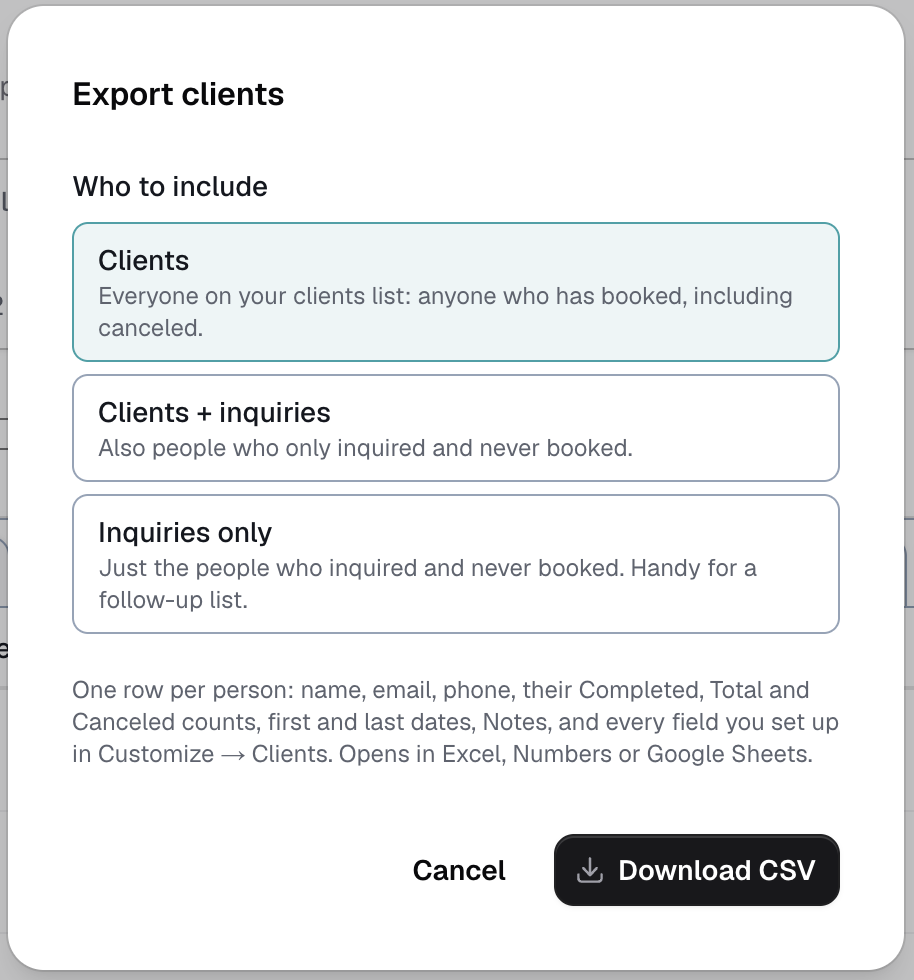
Export, at the top right of the Clients list, downloads your clients as a spreadsheet. First choose who to include:
- Clients: everyone on the list, including anyone whose booking was canceled.
- Clients + inquiries: also the people who asked and never booked.
- Inquiries only: just the people who never booked. Handy for a follow-up list.
You get one row per person, A to Z: name, email, phone, the Completed, Total and Canceled counts, when they first booked, last completed and last inquired, their Notes, and every field you set up in Customize > Clients. It opens in Excel, Numbers or Google Sheets.
⚠️ Only owners and admins see Export. Your staff never can.
Last updated